SpeakFile turns a written script into a voiceover file
The difference between a phone reading text aloud and producing a voiceover file is a saved artefact — and a word allowance that pays for it.
Short answer
SpeakFile is an iPhone app that converts a typed or pasted script into a saved voiceover file, with a named voice and a narration style chosen per script. Its listing screenshots show a word allowance rather than unlimited generation, which is the practical limit to plan around.
On this page
Your phone has read text aloud for years. What it has never done is hand you the audio afterwards. Speak Screen performs the words and forgets them, which is fine for proofreading and useless when the thing you need is a file to drop under a video.
SpeakFile is an iPhone app that closes that gap: you type or paste a script, pick a voice, and it produces a saved audio file you can export. The distinction is small to describe and large in practice, because a voiceover is an artefact and a screen reader is a performance.
What one screen tells you about the model
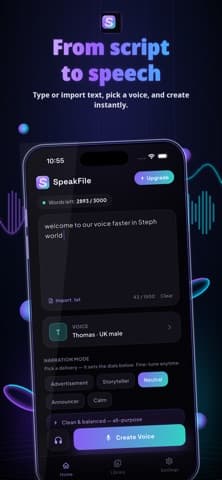
The main editor in the App Store screenshots is unusually informative, because it puts the constraints on the same screen as the work.
A word allowance sits at the top, reading 2,893 of 3,000 remaining, next to an Upgrade button. Below it, a script box with its own character counter at 41 of 1,500. Under that, the selected voice — Thomas, a UK male — and then a row of narration modes: Advertisement, Storyteller, Neutral, Announcer and Calm. Neutral is captioned "clean and balanced, all-purpose".
A metered word count is the tell. Generation that costs nothing is not metered, so the audio is almost certainly produced on a server rather than by the phone. That is not a criticism — it is the reason the voices sound the way they do — but it does mean your script leaves the device, and the privacy policy is the document that governs what happens to it.
How does it compare with the voice already on your phone?
iOS has spoken text built in, driven by the same speech synthesis that developers reach through AVSpeechSynthesizer. It costs nothing and never runs out. The comparison is narrower than it first looks.
| Built-in Speak Screen | SpeakFile | |
|---|---|---|
| What you end up with | Words spoken, nothing saved | A generated file kept in a library |
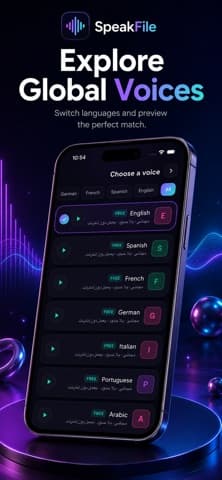
| Voice choice | System voices | Named voices grouped by language |
| Style control | None | Five narration modes |
| Limit | None | A word allowance, shown in the app |
| Cost | Included with iOS | Free tier, with an Upgrade button |
If you want to hear your draft, the built-in reader wins on every axis, and we make that argument at length in the text tools coverage. If you need audio that will sit under a video next week, it cannot help you at all.
Which voice should you pick?
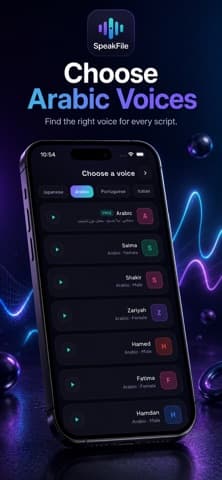
The listing shows the picker organised by language first, then by voice. English, Spanish, French, German, Italian, Portuguese and Arabic all carry a free badge in the screenshot, with Japanese and Turkish tabs also visible.
The Arabic list is the most complete one shown: Salma, Shakir, Zariyah, Hamed, Fatima and Hamdan, each labelled male or female. Six named Arabic voices is more than most general-purpose tools offer, and for Arabic narration that is the whole decision.
A voice that is nearly right is worse than a plain one, because the listener spends the clip noticing the voice instead of hearing the script.
Preview before you spend the allowance. Narration mode changes delivery rather than the voice itself, so the sensible order is to settle the voice, then try the same two sentences in two modes.
What it does not do
Three limits are worth knowing before you plan a workflow around it.
- It is not a recorder. There is no way to blend your own narration with a generated line; the app starts from text.
- The allowance is the plan. A 1,500-character box and a 3,000-word budget suit scripts, not chapters.
- iPhone only. The listing shows no Android release, so a mixed team cannot standardise on it.
Version 1.0.1 is current and the App Store shows no ratings yet, which means there is no user signal to weigh against the description. For a first release that is normal rather than alarming, but it does mean the trial is yours to run.
Where it fits in a real workflow
The honest use is short-form: a 30-second product clip, a tutorial intro, narration for a slideshow you assembled elsewhere. Write the script somewhere you can edit it properly, paste the final version in, generate once, export.
The failure mode is treating it as a draft tool. Every regeneration spends words, so revising in the app is the expensive way to work. Draft in a notes app, then let SpeakFile do the one thing it is for. That is the same discipline that makes any metered tool tolerable, and it applies equally to the workflows we cover elsewhere.
Write differently for a voice than for a page
The most common disappointment with any text-to-speech tool is blamed on the voice when it belongs to the script. A synthetic voice has no instinct for a sentence it does not understand, so the writing has to carry the timing.
Four adjustments do most of the work. Shorten sentences, because a clause that survives on a page becomes a run-on when spoken. Spell out anything ambiguous — "twenty twenty six" rather than a bare year, and "per cent" rather than a symbol, since a reader guesses and a synthesiser does not. Replace parentheses with full stops, because an aside has no audible brackets. And read your own script aloud once before you generate, which catches more than any setting.
The voice is not the performance. The punctuation is.
None of that is specific to this app, and all of it is why two people using the same voice get results a listener would describe differently.
What to check during the trial
The free allowance is small, so spend it deliberately rather than on the first paragraph that comes to hand.
- Your own vocabulary. Feed it the product names, place names and acronyms you actually use. This is where synthetic voices fail, and it fails the same way every time.
- A full sentence of numbers. Prices, dates and version numbers reveal the pronunciation rules quickly.
- The mode difference. Generate the same two sentences in Neutral and in Storyteller, and decide whether the difference is worth managing.
If the app cannot say your company's name properly, nothing else about it matters. That test costs about twenty words. The wider creator tools question — whether a generated voice suits your audience at all — is a separate judgement, and worth making before you build a workflow on one.
One more thing worth settling early is where the finished audio goes. The listing mentions saving recent generations and an export step, and the app's third tab is a Library. A generated file you cannot find next week is the same problem as a voice memo you cannot search, so export the keepers into the project folder they belong to rather than leaving them stacked in the app. Version 1.0.1 is current and carries no ratings yet, which means your own trial is the only review available.
Frequently asked questions
- Does SpeakFile work offline?
- Almost certainly not for generation. The app shows a word allowance and an upgrade path, which is how metered server-side services are built. The listing does not claim offline use anywhere.
- How many words do you get for free?
- The screenshot in the App Store listing shows an allowance of 3,000 words with 2,893 remaining, alongside an Upgrade button. Treat that as the figure at the time the screenshot was taken rather than a permanent guarantee.
- Can it read a PDF or a document?
- The editor accepts typed and pasted text and shows an option to import a .txt file. The listing does not describe PDF or document import, so convert to plain text first.
- Are the Arabic voices usable for narration?
- The listing shows six named Arabic voices labelled by gender, which is a genuine option rather than a token one. Whether the delivery suits your script is a judgement only a preview can settle.
Sources
- SpeakFile: Text to Voice — App Store
- SpeakFile privacy policy — Loopara
- AVSpeechSynthesizer — Apple Developer Documentation
Published by
Loopara
Practical guides, free tools, workflows, and resources for productivity, files, images, video, text, creators, and everyday digital tasks.
About the publication