Extract audio from a video file, without losing quality
The sound is already a complete track sitting inside the container, so copying it out costs seconds and loses nothing. Most tools re-encode instead, and never say so.
Short answer
A video file stores its sound as a separate track, so extracting it is a copy rather than a conversion — seconds, and no quality loss. Ask for the format the video already contains, usually M4A, and only re-encode to MP3 or WAV when something downstream specifically needs it.
On this page
There is a talk you recorded on video and you want the audio for the drive home. Or a lecture whose slides you do not need. To extract audio is to copy the sound track out of a video container into a file of its own, and in most cases it needs no re-encoding at all — which means no quality loss and a job that finishes in seconds rather than minutes.
That last part is the bit worth knowing, because most tools do it the slow, lossy way by default and never mention that the fast, lossless way existed.
A video file is a box with tracks in it
An MP4 or a MOV is a container. Inside it sit separate streams — usually one video, one audio, sometimes subtitles and chapter markers. They are stored side by side, not blended together.
That is why extraction can be free. The audio is already a complete, playable AAC or MP3 stream. Copying it out is a file operation, not a conversion:
- Copy the stream — seconds, no quality change, output is whatever the video already held.
- Re-encode the stream — minutes, small quality loss, output is whatever format you asked for.
- Record the playback — real time, largest loss, and it captures whatever else your device was doing.
The third is what happens when someone plays the video and records the screen. It works and it is the worst option available, because a 40-minute video takes 40 minutes and arrives worse than the original.
| Method | Time for a 40-minute video | Quality | When it is right |
|---|---|---|---|
| Stream copy | A few seconds | Identical to source | Almost always |
| Re-encode | 1–5 minutes | Slightly reduced | You need a specific format or smaller size |
| Screen recording | 40 minutes | Noticeably reduced | Only when the file itself is unreachable |
| Online converter | Upload + download | Varies | When you have no tool and the file is not sensitive |
If the tool cannot tell you which of these it is doing, assume it is re-encoding, because that is the default nearly everywhere.
Where the time actually goes
Worth knowing why the slow way is slow, because it explains every tool that takes five minutes over this.
Re-encoding decodes the whole stream and compresses it again, sample by sample. That is real work, proportional to the length of the recording, and on a phone it is also proportional to how warm the phone is willing to get. A stream copy reads bytes and writes them somewhere else.
So the difference is not 20% — it is roughly two orders of magnitude. Extract audio from a 40-minute file by copying and it finishes before the progress bar renders. Re-encode the same file and you wait, for an output that is measurably worse than the input.
Doing it without uploading the file
The thing worth avoiding is sending a recording of a meeting to a website you know nothing about. Three approaches keep the file on the device.
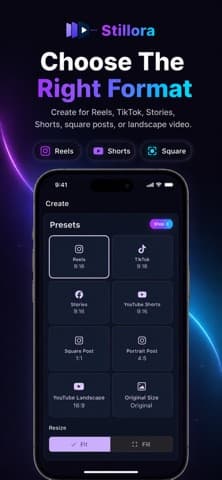
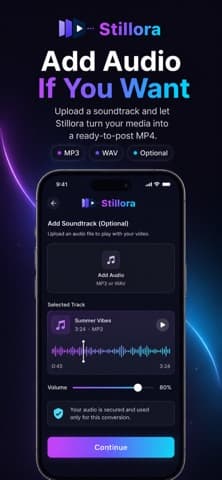
On a phone, extract audio with an app that processes locally. Anything that assembles or edits video on the device already has the decoder it needs. Stillora works with the audio track of a clip while building an MP4, which is the same machinery — the operation happens on the phone and nothing is uploaded.
On a Mac, the built-in tools already do it. QuickTime Player can export the audio of an open movie directly. It is two menu items and it does a stream copy where it can.
On any desktop, `ffmpeg` is the honest answer for anyone comfortable with a terminal. One command does the lossless version:
ffmpeg -i talk.mp4 -vn -acodec copy talk.m4a-vn drops the video, -acodec copy says do not re-encode. Change copy to libmp3lame and you get an MP3 instead, at the cost of a re-encode. The ffmpeg documentation covers the rest, and this is the one command most people ever need from it.
Which format should the output be?
The default answer is: whatever the video already contained. Ask for something else only when something downstream requires it.
M4A / AAC is what most video files hold. Copying it out gives you an M4A that plays on essentially everything made in the last fifteen years. This is the no-loss option and should be your first choice.
MP3 is worth it only for genuinely old hardware or software that refuses anything else. Converting AAC to MP3 is a second lossy pass over already-lossy audio, which is the one thing worth avoiding.
WAV is uncompressed and enormous — roughly 10 MB a minute against under 1 MB for the compressed original. It makes sense when you are feeding the file into editing or transcription software that wants raw input, and almost never otherwise.
A practical note on size. A 40-minute talk is often 300 MB as video and around 20 MB as extracted audio, because the picture is nearly all of the file. That is the actual reason to do this — not quality, but that the audio is a twentieth of the size and can live on a phone.
What breaks, and what to do about it
Three failures cover most attempts.
The output has no sound. Usually the wrong track was selected on a file with several — a film with multiple languages, or a screen recording with both microphone and system audio as separate streams. Tools that show a track list let you choose; tools that do not will take the first one.
The file will not play. An M4A containing something unusual, or an extension that does not match the contents. Renaming does not fix it. Re-extract and ask for MP3, which forces a re-encode into something universally readable.
It is out of sync with a video you still have. Extraction does not cause drift; drift that appears afterwards was in the source, usually from a variable-frame-rate screen recording. Re-encoding to a constant frame rate is the fix, and it is a video problem rather than an audio one.
For the neighbouring tasks — trimming what you extracted, or going the other way and building a video from audio you already have — see our video tools and file tools guides. If the point of extracting the audio is to read it rather than hear it, text tools covers turning a recording into a transcript.
Extracting from something you are streaming
The common case this does not cover: the video is on a site rather than on your device, and there is no file to open.
Whether you may take a copy at all is a separate question from whether you can, and it is the one to settle first. A lecture your university published for you, a talk released under a licence that permits it, or your own upload are all straightforward. Most other things are not, whatever a browser extension implies.
Where it is legitimate, the reliable route is to obtain the file first and extract locally, rather than using a site that does both in one step. Those sites re-encode by definition — they cannot hand you a stream copy of something they had to download themselves — and you have given a third party the recording along the way.
If the material is genuinely unavailable as a file, screen recording is the fallback, with its real cost accepted: it takes as long as the video and the result is a generation worse.
The short version
Extract audio by copying the stream, not by converting it. Ask for the format the video already holds, keep the file on your device unless it genuinely does not matter, and reach for a re-encode only when something downstream demands a format the source does not have.
To extract audio is a thirty-second job that a lot of tools turn into a five-minute one, and the difference is entirely in which of the three methods you happened to pick.
Frequently asked questions
- Does extracting audio reduce the quality?
- Not if the tool copies the stream, which is the correct method — the output is bit-for-bit the audio the video already held. Quality only drops when the tool re-encodes, which most do by default without saying so.
- Why is the extracted file so much smaller than the video?
- Because the picture was nearly all of it. A 40-minute talk can be 300 MB as video and around 20 MB as audio, which is usually the whole reason for extracting it.
- The audio has no sound — what happened?
- Most likely the wrong track was picked from a file with several, which is common in recordings that captured microphone and system audio separately. Use a tool that lists the tracks and choose explicitly.
- Should I convert the result to MP3?
- Only if something you use refuses M4A. Converting AAC to MP3 is a second lossy pass over already-compressed audio, so it costs quality and buys compatibility you probably already had.
Sources
- ffmpeg documentation — stream copy — FFmpeg
- ISO base media file format (MP4) overview — ISO
- Export audio from a movie in QuickTime Player — Apple Support
Published by
Loopara
Practical guides, free tools, workflows, and resources for productivity, files, images, video, text, creators, and everyday digital tasks.
About the publication